
Translate · Android, iPhone and the web
From your language and back. Straight into your cards.
Don’t know how to say something? Type it in your own language to get a translation into the language you’re learning. Come across an unfamiliar word? Type it as it is to get a translation into your own language. Either way, pick a translation and save it to your inbox, ready to become a flashcard.
How does Translate work?
Most words worth learning do not arrive in a book or a video. They come up in a conversation, in a shop, in your own head while you try to say something. Translate is for those: one button, wherever you are in the app, and the word is saved before you forget it.
- Press Translate. The round button sits in the bottom-right corner. The sheet opens over the screen you are on, and that screen stays as it was.
- Type a word or a phrase. In the language you’re learning or in your own, whichever comes to mind. The app identifies the language and translates your text into the other language of your deck.
- Pick a translation and save it. Several translations come back; choose the one you mean and press Save to inbox. Undo is there for a few seconds if you change your mind.
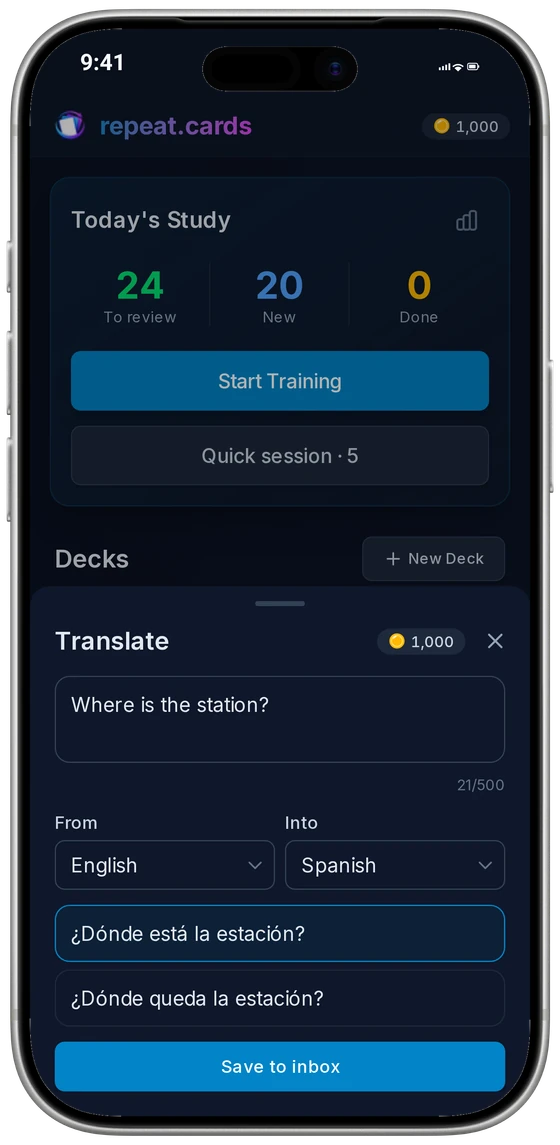
One word, from your head to a card
Here’s the full journey of a word you wanted to say but didn’t know how to say.
Press Translate
- What happens
- The sheet opens over the screen you are on
Type the word in your own language
- What happens
- The app recognises the language and translates it into the one you learn
Choose one of the translations
- What happens
- It becomes the word to learn, with what you typed as its translation
Press Save to inbox
- What happens
- The word waits in the inbox, and the box is ready for the next one
Open the inbox later
- What happens
- Turn the word into a card in the deck for that language
What Translate does for you
- No language to pick first. Type in any language of your decks and the app works out which one it is. If it guesses wrong, choose the language under From and it translates again.
- Both directions. Type a word in the language you learn to find out what it means, or in your own to find out how to say it. Either way the card is saved the right way round: the word in the language you learn, the translation in yours.
- Several translations, your choice. A word rarely has one translation. Pick the one you mean; for a word in the language you learn you can keep more than one. A phrase of up to 500 characters is translated as a whole.
- On every screen. The button waits in the corner of the app, and Translate is also on the Capture screen. Training, the reader and the video player have their own tap-to-translate, so the button steps aside there.
What it costs
Translating uses AI and runs on coins, like the other AI features; saving a word to the inbox and turning it into a card cost nothing. Prices are on the pricing page.
Translate FAQ
Which languages can I translate?
What happens if I type in my own language?
Where is the Translate button?
Can I hide the button?
Does Translate cost anything?
Keep the word you just needed.
Create an account and a deck for the language you learn, and every word you look up can become a flashcard. Free to start, no credit card.
Get started — freeEither language · Several translations · Android, iPhone and the web
Keep reading
Capture words
Catch words from the screen with the Android bubble, from a photo or from pasted text, and keep them in an inbox.
AI flashcards
Type a word and AI fills in the rest of the card: example, audio, mnemonic, picture, grammar.
Read books
Upload an EPUB or FB2 book, see new words marked, and tap one to translate it and save it.
Pricing
What coins are, what packs cost, and what stays free.