
Import your Anki deck online, without starting over.
Move your Anki cards into repeat.cards in about a minute. Your audio, images, and review history come with them — so cards you already know aren't reset to new.
.colpkg file (Anki Collection Package), then open Decks → Import in repeat.cards, upload the file, and map which fields are the word and the translation. Your cards, audio, images, and review history come across. It is free and takes about a minute.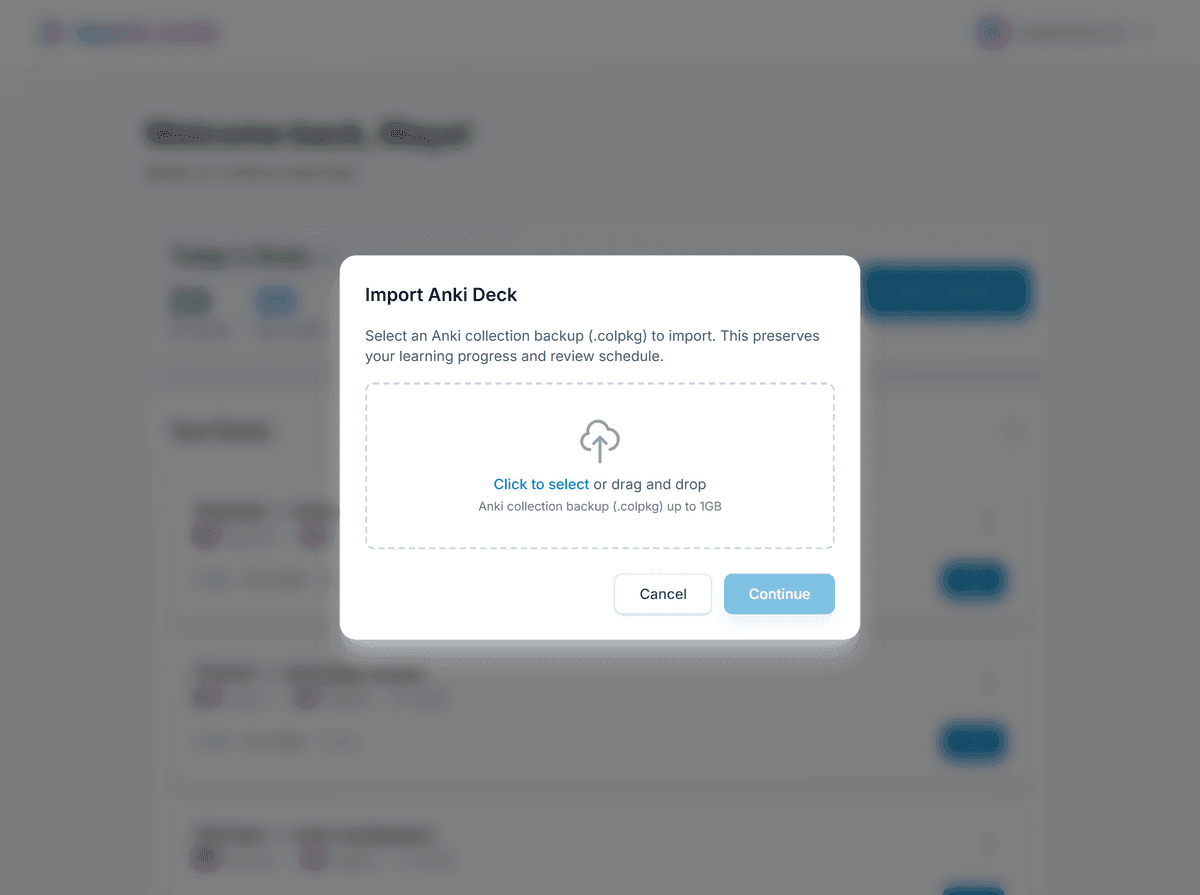
How to import an Anki deck into repeat.cards
The whole flow runs in your browser — nothing to install. Follow these six steps:
- Export your collection from Anki as a .colpkg file. In Anki on desktop, open File → Export. Set the export format to "Anki Collection Package" (.colpkg) and keep media included. This is the full collection backup — unlike a single-deck .apkg export, it contains your review history and scheduling.
- Sign in to repeat.cards and open the importer. Create a free repeat.cards account or sign in, go to your Decks, and choose Import Anki Deck. No software to install — it all runs in the browser.
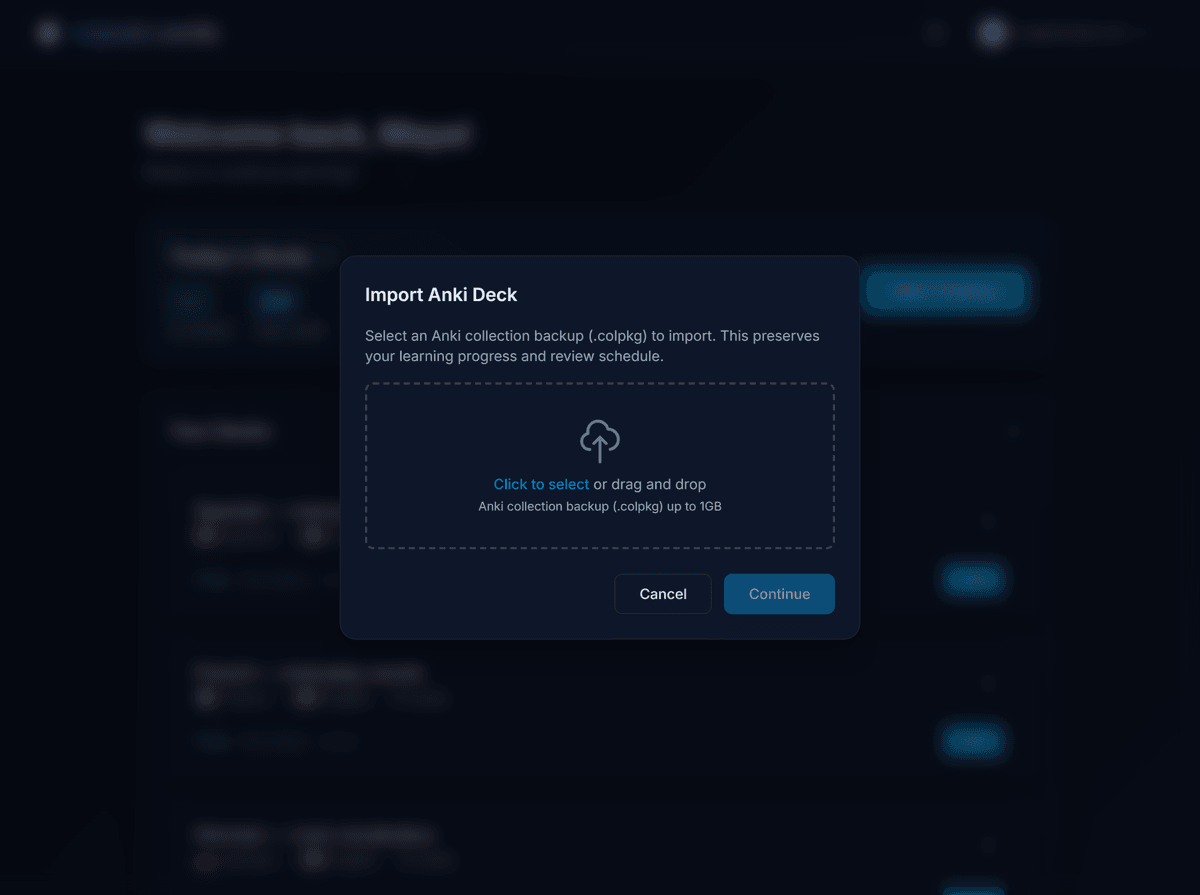
- Upload your .colpkg file. Click to select or drag and drop your .colpkg collection backup (files up to 1 GB are supported). repeat.cards reads the collection and shows a preview of the decks and fields it found.
- Choose the deck and languages. If your collection contains more than one deck, pick the one you want (one deck per import). Give the new deck a name, then set the language you are learning and your native language.
- Map the fields. Tell repeat.cards which field holds the word and which holds the translation, using the live preview to confirm. Optionally map an example sentence, plural form, and verb-conjugation fields — there are one-click presets for Spanish, German, French, Portuguese, Italian, Russian, and English.
- Import. Click Import. repeat.cards creates the new deck, brings across the audio and images, and converts each card's Anki schedule into FSRS state. When it finishes you will see how many cards and media files were imported.
What gets imported?
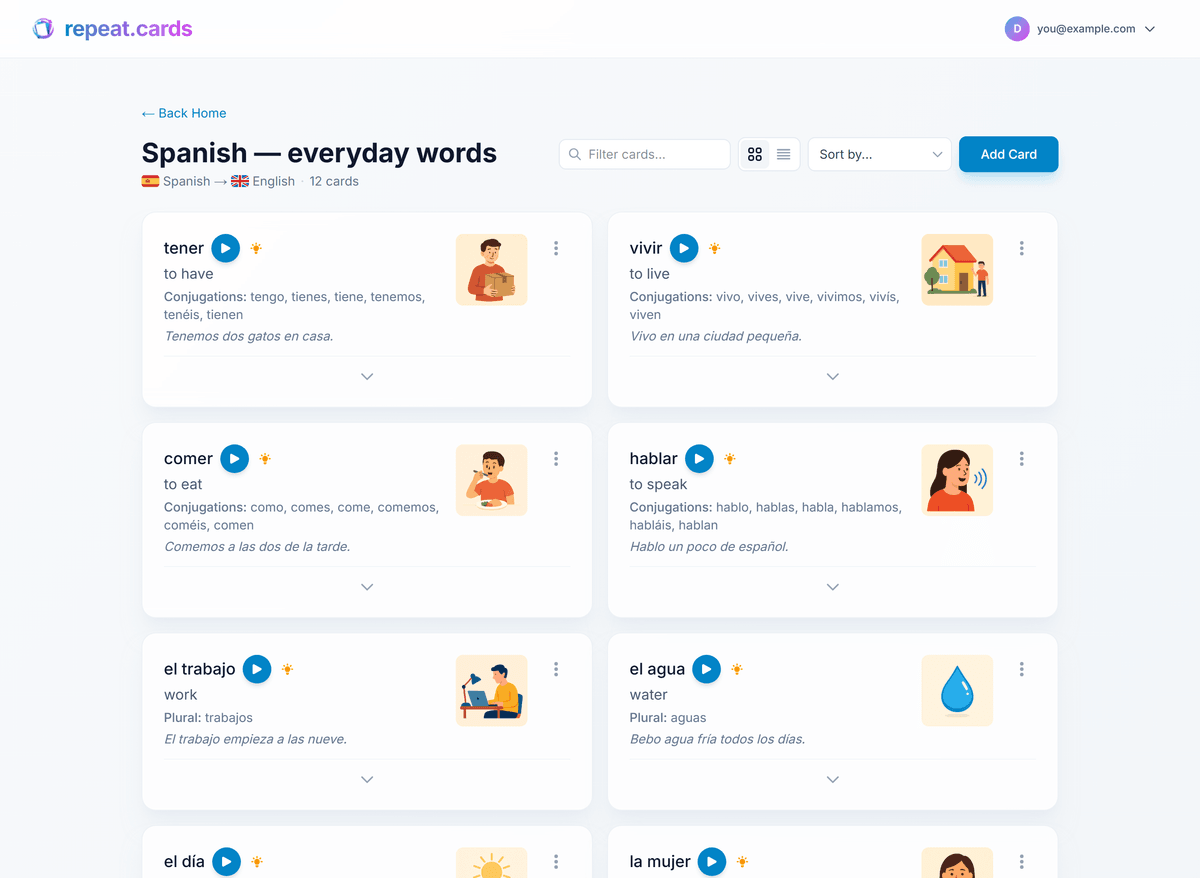
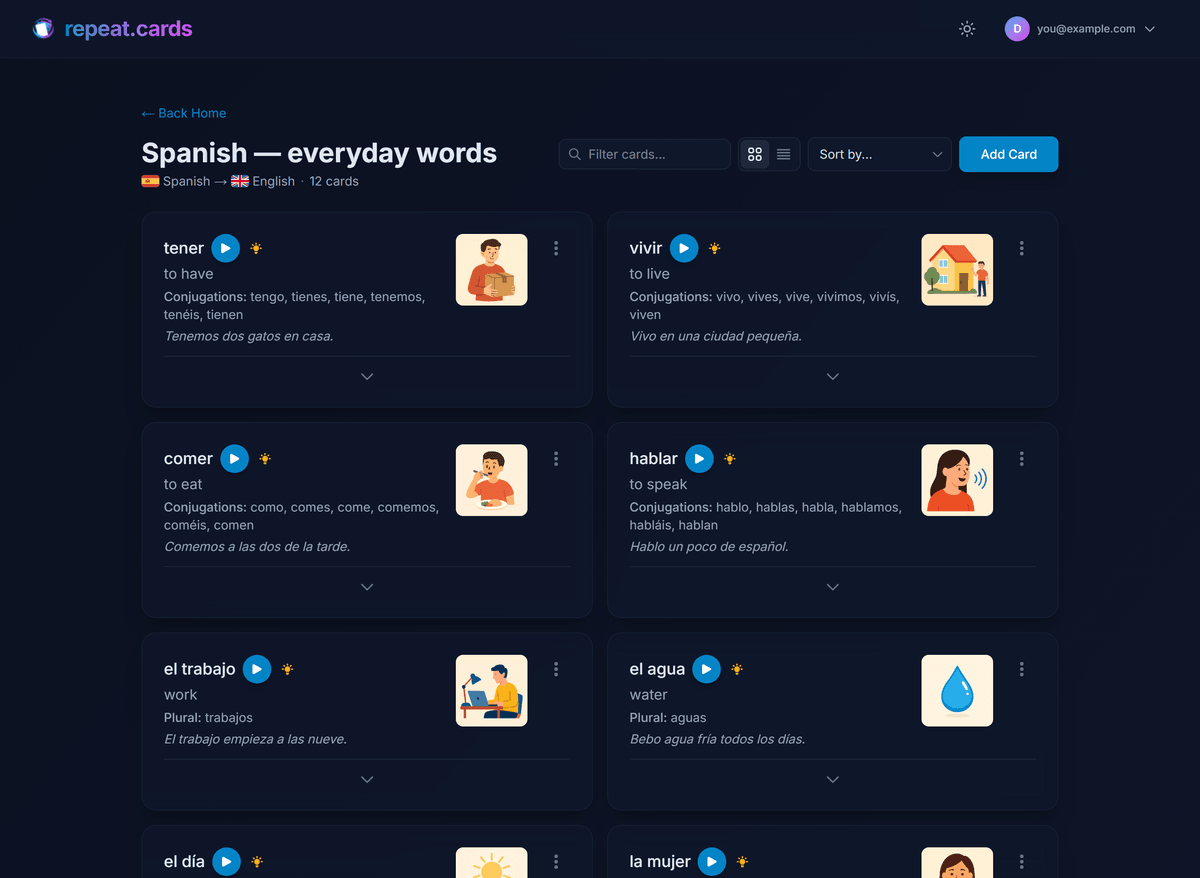
repeat.cards brings over the content and the progress of your cards, but not Anki’s presentation layer (note types and templates), because it renders cards its own way.
| From your Anki collection | Imported? |
|---|---|
| Cards (word + translation fields) | Yes — you choose which fields map where |
| Audio files | Yes (when media is included in the export) |
| Images | Yes (when media is included in the export) |
| Review history & schedule | Yes — converted into FSRS state per side |
| Example, plural & conjugation fields | Yes — optional field mapping, with presets |
| Custom note types | Mapped to the fields you select; the rest are ignored |
| Card templates & HTML/CSS styling | No — repeat.cards uses its own card layout |
| Cloze-deletion behaviour | No — the text imports, but interactive cloze isn't recreated |
What if my deck has custom note types?
That is fine — repeat.cards does not use note types at all. When you import, you see every field your notes contain and simply pick which one is the word and which is the translation. If a note type has extra fields (an example sentence, a plural, conjugations), you can map those too, or leave them out. Anything you don’t map is skipped, so even complex multi-field note types import cleanly.
Why .colpkg instead of .apkg?
Anki can export two ways. A .apkg file is a single deck and, critically, does not include your learning progress. A .colpkg file is a full collection package that does carry the review history and schedule for every card. repeat.cards uses .colpkg specifically so it can preserve your progress — if it accepted .apkg, every imported card would have to start over as new.
Troubleshooting common import errors
- “It won’t accept my .apkg file.” Re-export from Anki as an Anki Collection Package (.colpkg) instead. The
.apkgformat is rejected on purpose because it lacks your scheduling data. - Audio or images are missing. Make sure media was included when you exported — use the Collection Package export rather than a plain-text notes export.
- The wrong fields imported as word/translation. Run the import again and re-map the Word and Translation fields using the preview, which shows sample values for each field.
- My file is over 1 GB. Trim unused media in Anki, or export a smaller subset of your collection, then import again.
- I have several decks in one collection. That’s expected — pick the deck you want in the configure step and repeat the import for each additional deck.
Anki import FAQ
Why does repeat.cards need a .colpkg file and not .apkg?
Will my Anki review history transfer?
Do my audio and images come across?
What happens to custom note types and card templates?
How big a collection can I import?
Can I import more than one deck at a time?
Move your Anki cards in about a minute.
Export your .colpkg collection, upload it, and keep every bit of progress you've earned. Free today.
Import your deck — freeKeeps audio, images & review history · FSRS by default
Keep reading
repeat.cards as an Anki alternative
How repeat.cards compares to Anki feature by feature — FSRS, AI-built cards, and language fields with no setup.
Create your free account
Sign up, then import your collection or build a fresh deck.
How repeat.cards works
FSRS timing plus AI-built cards, for language learners at any level.